
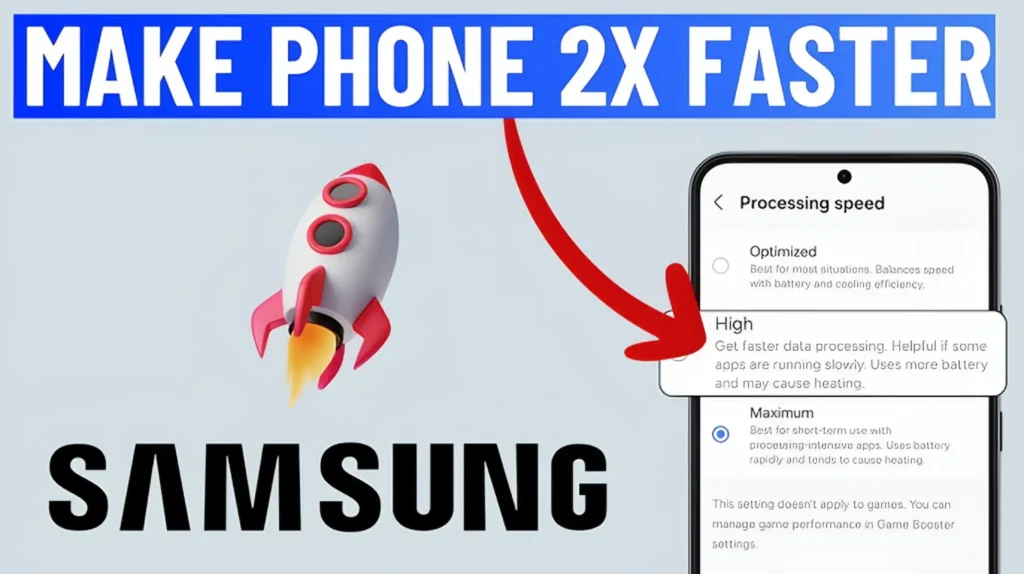
Smartphones slow down for all kinds of reasons — cluttered storage, background apps, bloated settings, or simply too many things happening at once. The good news? You can make your Samsung phone feel twice as fast with a few simple tweaks. No technical skills required. No risky hacks. Just clean, practical steps that instantly boost performance.
This guide walks you through the most effective ways to speed up any Samsung device — whether it’s brand‑new or a few years old. Follow these steps and your phone will feel lighter, smoother, and dramatically faster.
🚀 1. Restart Your Phone the Right Way
Most people never restart their phone properly. They just lock the screen and keep going. But a full restart clears temporary files, resets background processes, and frees up memory.
Do this:
- Hold Power + Volume Down
- Tap Restart
- Wait for the full reboot
This alone can make your phone feel instantly snappier.
Why it works: restarting clears cached processes that quietly slow everything down. It’s the simplest speed boost you can get.
⚡ 2. Turn Off Animations (Instant Speed Boost)
Samsung’s animations look nice, but they slow down how fast apps open and close. Turning them off makes your phone feel twice as fast — immediately.
How to disable animations:
- Go to Settings
- Tap About Phone
- Tap Software Information
- Tap Build Number 7 times to unlock Developer Options
- Go back to Settings → Developer Options
- Set these to 0.5× or Off:
- Window Animation Scale
- Transition Animation Scale
- Animator Duration Scale
Your phone now responds instantly to every tap.
🧹 3. Clear Cached Data (Not Your Files)
Cache builds up over time and slows down apps. Clearing it gives you a clean slate without deleting photos or personal data.
Clear app cache:
- Go to Settings → Device Care → Storage
- Tap Apps
- Choose heavy apps like Chrome, TikTok, Instagram
- Tap Storage → Clear Cache
Do NOT tap “Clear Data” — that resets the app.
Why this helps:
Apps like social media and browsers store gigabytes of temporary junk. Clearing it frees space and speeds up loading times.
🧊 4. Disable Background Apps You Don’t Use
Many apps run silently in the background, draining RAM and slowing everything down.
Stop them:
- Go to Settings → Battery and Device Care → Memory
- Tap Apps Not Used Recently
- Put unused apps to sleep
- Tap Deep Sleep Apps and add apps you rarely open
This prevents them from waking up and consuming resources.
🧽 5. Clean Up Storage (Aim for 20% Free Space)
Samsung phones slow down dramatically when storage is nearly full. Keeping at least 20% free ensures smooth performance.
Quick ways to free space:
- Delete duplicate photos
- Remove old downloads
- Clear WhatsApp media
- Offload videos to cloud storage
- Uninstall apps you never use
Pro tip:
Use Samsung’s Storage Analyzer inside Device Care to find large files instantly.
🔥 6. Turn Off RAM Plus (It Can Slow You Down)
RAM Plus uses storage as virtual memory. On older or mid‑range phones, this can actually make things slower.
Turn it off:
- Go to Settings → Battery and Device Care → Memory → RAM Plus
- Set it to Off
Your phone will rely on real RAM instead of slower virtual memory.
🧯 7. Disable Bloatware You Don’t Need
Samsung phones come with preinstalled apps you may never use. You can’t uninstall all of them, but you can disable them.
Disable bloatware:
- Go to Settings → Apps
- Tap the app
- Tap Disable
This stops the app from running or updating.
Safe apps to disable:
- Samsung Kids
- Samsung Free
- AR Zone
- Bixby routines (if unused)
- Preinstalled carrier apps
Less clutter = more speed.
🌐 8. Use Lite Versions of Heavy Apps
Some apps are resource hogs. Switching to lighter versions gives you the same features with less lag.
Examples:
- Facebook → Facebook Lite
- Messenger → Messenger Lite
- Chrome → Samsung Internet
- TikTok → TikTok Lite
These use less RAM, less battery, and load faster.
🛡️ 9. Update Your Phone (It Actually Helps)
Samsung updates often include performance improvements, bug fixes, and better memory management.
Update:
- Go to Settings → Software Update
- Tap Download and Install
If you’re behind on updates, installing them can dramatically improve speed.
🧰 10. Use Device Care’s Hidden Optimization Tools
Samsung’s Device Care has powerful tools most people never use.
Try these:
- Optimize Now — closes background apps
- Memory Boost — frees RAM
- Battery Protection — reduces overheating
- Auto Optimization — schedules daily cleanups
Set Auto Optimization to run at night for best results.
❄️ 11. Keep Your Phone Cool
Heat slows down processors. If your phone feels hot, performance drops instantly.
Keep it cool by:
- Removing the case during gaming
- Avoiding charging while using heavy apps
- Keeping brightness below 80%
- Closing apps that cause overheating
A cooler phone is a faster phone.
🧨 12. Reset Settings (Not Your Data)
If your phone still feels slow, reset settings — not your files.
Reset settings:
- Go to Settings → General Management
- Tap Reset
- Tap Reset All Settings
This fixes hidden configuration issues without deleting photos, apps, or messages.
🧿 13. Factory Reset (Last Resort)
If nothing else works, a clean reset gives you a fresh start.
Backup first:
Use Samsung Smart Switch or Google Backup.
Then:
Settings → General Management → Reset → Factory Data Reset
Your phone will feel brand‑new again.
🎉 Final Thoughts: Your Samsung Phone Can Be 2× Faster Today
You don’t need to buy a new phone to get fast performance. With the right tweaks — disabling animations, clearing cache, optimizing memory, and removing background apps — your Samsung device can feel twice as fast in just a few minutes.
These steps are safe, simple, and proven to work across all Samsung models.