How to Unsubscribe From Gmail Newsletters Instantly Explained!

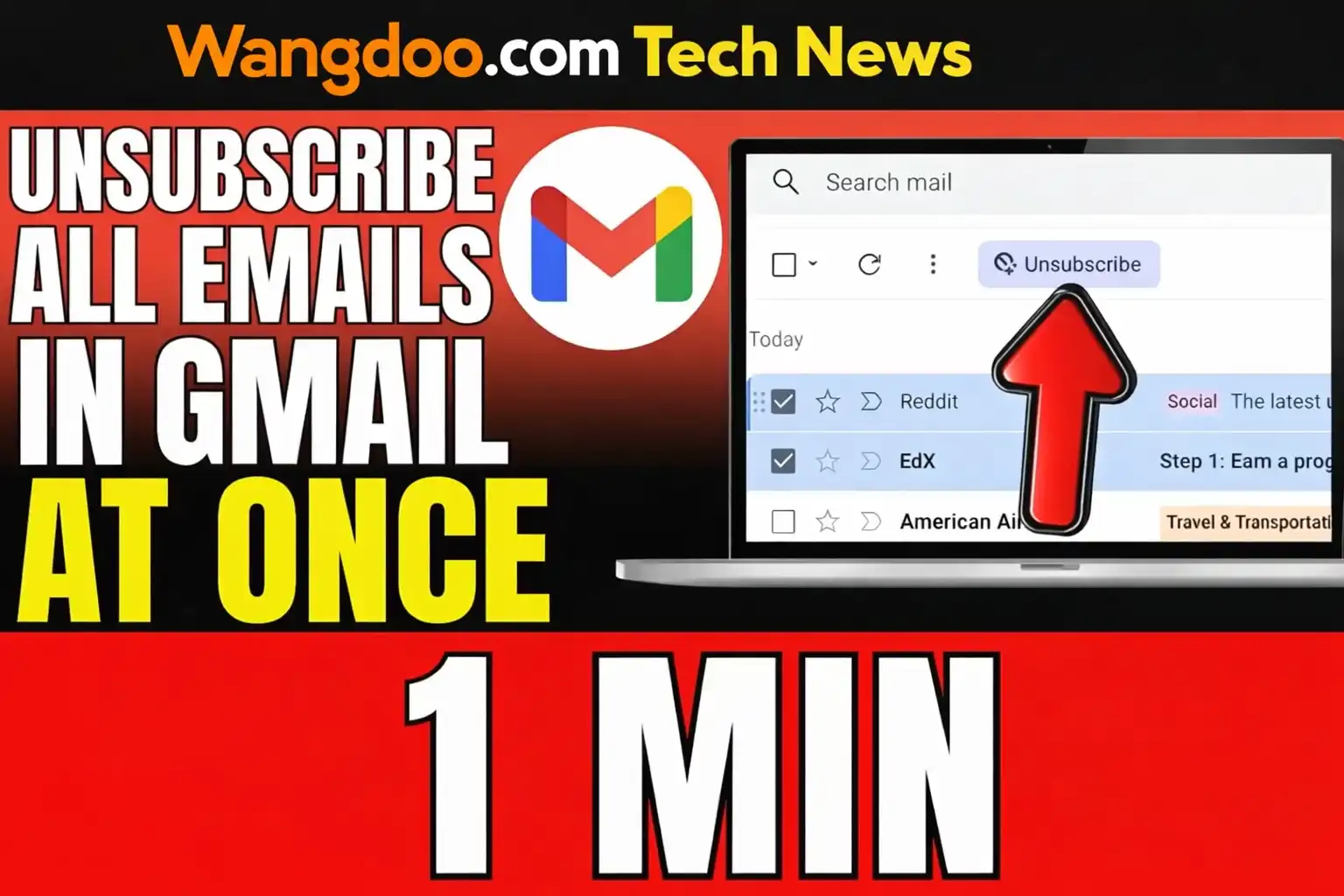
How to Unsubscribe From Every Newsletter in Gmail — The Complete 2026 Guide
Gmail added a powerful new Manage Subscriptions dashboard in July 2025 that most people still don’t know about. This guide covers every method — from one-click fixes to nuclear options — including the hidden tricks, the warning signs, and the one situation where you should never click unsubscribe.
Here is the reality of most people’s Gmail inbox in 2026: somewhere between useful emails and genuine spam sits a grey zone of newsletters, promotional blasts, and mailing lists you do not remember joining. The average office worker receives 121 emails a day — and research suggests 62% of those are newsletters, automated notifications, or messages nobody asked for. That is a lot of noise.
The good news is that Gmail has significantly improved its unsubscribe tools over the past 12 months. In February 2024, Google required all bulk senders to support one-click unsubscribe. In July 2025, Google launched a dedicated Manage Subscriptions dashboard. Between those two changes, Gmail in 2026 is the most powerful it has ever been for cleaning out unwanted email — if you know where to look.
This guide covers every method, ranked from fastest to most thorough, including the hidden tricks most guides miss and the one situation where clicking unsubscribe will make things worse.
A few newsletters to remove: Methods 1 and 2 — done in under 5 minutes.
Dozens of newsletters to clear: Method 3 (Manage Subscriptions) — done in under 15 minutes.
Hundreds of newsletters, inbox chaos: Method 4 (search + bulk delete) plus Method 5 (filters) — allow 30 minutes.
Someone ignoring your unsubscribe: Jump straight to Method 6 — the nuclear option.
Not sure where to start: Read the warning section first, then go to Method 3.
Watch — Gmail Manage Subscriptions Walkthrough
How to unsubscribe all emails in Gmail at once (2026) — covers Manage Subscriptions and bulk methods. All rights respective owner. Source: YouTube.
The Warning Nobody Else Puts First — When NOT to Click Unsubscribe
Every guide you have read tells you to click unsubscribe. Most of the time that is correct. But there is one situation where clicking unsubscribe makes things significantly worse, and understanding it will save you a lot of pain.
If you do not recognise the sender, never signed up for the list, or the email looks like spam — do not click the unsubscribe link. Here is why: clicking any link in a suspicious email confirms to the sender that your email address is real, active, and monitored. Spammers use this signal to mark your address as a high-value target and sell it to other spam operations. You will get more email, not less.
What to do instead: Click the three-dot menu in Gmail → Report spam. This does two things — it moves the email out of your inbox and it trains Gmail’s spam filter to block future messages from that sender automatically. No link clicking required.
The rule of thumb is simple: if you remember signing up for it, use the unsubscribe methods below. If you have no idea where it came from, report it as spam instead.
Method 1 — The One-Click Unsubscribe Button Inside the Email
One-click unsubscribe from inside the email
When Gmail detects that an email came from a bulk sender, it displays an Unsubscribe link next to the sender’s name at the very top of the email — you do not need to scroll to the bottom to find a tiny link in grey text. This works because Google required all bulk senders to support the List-Unsubscribe header from February 2024 onwards, so the vast majority of legitimate newsletters now support it.
Look at the top of the email next to the sender’s name. You should see a small Unsubscribe link in grey text.
Gmail sends the unsubscribe request automatically in the background. You do not need to visit an external website or fill in a form.
Under the CAN-SPAM Act, senders are legally required to honour unsubscribe requests within 10 business days. Most reputable senders process it within 24–48 hours.
If the Unsubscribe link does not appear: the sender either does not support the List-Unsubscribe header (common with smaller or older mailing lists) or is not a bulk sender. In that case, scroll to the bottom of the email and find the sender’s own unsubscribe link — every legitimate commercial email is legally required to include one.
Method 2 — The Hidden URL Shortcut to Manage Subscriptions
The #sub URL trick — skip the menus entirely
Most people do not know this. If you are on Gmail in a desktop browser, you can open the Manage Subscriptions dashboard directly without navigating through any menus. In your browser address bar, type #sub before #inbox in the Gmail URL.
So instead of https://mail.google.com/mail/u/0/#inbox — type https://mail.google.com/mail/u/0/#sub and press Enter. The Manage Subscriptions view opens instantly.
Bookmark it. It is faster than navigating through the Gmail sidebar every time.
Method 3 — Gmail Manage Subscriptions Dashboard
Manage Subscriptions — the most powerful free method
Google launched the Manage Subscriptions dashboard on July 8, 2025 for web, July 14 for Android, and July 21 for iOS. It shows every sender that has been emailing you on a subscription basis, sorted by frequency — the worst offenders at the top. You can unsubscribe from any of them with a single click without opening a single email.
On Desktop:
Log in at mail.google.com
Scroll down the left sidebar past Sent, Drafts, and other folders until you see More. Click it to expand.
The dashboard opens showing all your subscription senders sorted by how frequently they email you.
Gmail processes the request automatically. Work your way down the list starting from the top — those are the senders filling your inbox the most.
On Mobile (Android and iOS):
Tap the three-line menu icon at the top left of the screen.
It appears below the Trash section. If you do not see it, the feature may not have rolled out to your account yet — check back in a few days.
Same process as desktop — Gmail handles it in the background.
A single business often runs more than one email list — newsletters, promotional offers, product updates, and order confirmations can all be separate lists. If you unsubscribe using the link inside one email, you only get removed from that specific list. The Manage Subscriptions dashboard is smarter — when you unsubscribe from a sender there, Gmail removes you from all active lists connected to that sender simultaneously. Use the dashboard wherever possible.
Method 4 — The Hidden Search Query That Finds Every Subscription Email
The has:unsubscribe search — find everything Gmail missed
The Manage Subscriptions dashboard shows you subscription emails from recent months — but it does not show everything. There is a Gmail search operator that surfaces every email in your inbox that contains an unsubscribe link, including older ones the dashboard does not display.
In the Gmail search bar, type: has:unsubscribe and press Enter.
Every email containing an unsubscribe link will appear. You can then work through them, or select all and bulk delete to clear the backlog in one go.
For even more coverage, use this expanded search query which catches promotional emails even without a standard unsubscribe header:
has:unsubscribe OR "list-unsubscribe" OR category:promotions
There is also a lesser-known internal Gmail label that captures subscription emails detected by Gmail’s algorithms — including ones that did not make it into the Manage Subscriptions view. Search for: label:^unsub
This gives you Unroll.me-level visibility into your subscriptions without handing any tool access to your entire inbox.
Method 5 — Create a Filter to Auto-Delete Future Emails From a Sender
Gmail filters — the permanent solution for persistent senders
For senders that keep emailing despite unsubscribe requests — or for newsletters you want to stop receiving but keep the old emails — a Gmail filter is the most permanent solution. It requires no external tools and works entirely within Gmail.
Click the small arrow or filter icon at the right end of the search bar to open the advanced search options.
Or enter their domain — for example @newsletter.example.com — to catch every email from that domain regardless of which address it comes from.
At the bottom of the advanced search panel, click Create filter.
Choose Delete it to automatically trash every future email from that sender. Or choose Skip the Inbox (Archive it) if you want to keep emails but not see them clutter your inbox. Tick Also apply filter to matching conversations to clean up existing emails too.
Method 6 — The Nuclear Option: Block the Entire Domain
Block a sender entirely — when nothing else works
If you have unsubscribed from a sender multiple times and they keep emailing you, or if a sender does not support one-click unsubscribe, blocking is the final option. Blocked senders go directly to spam — their emails never appear in your inbox again.
Click the three-dot menu (⋮) at the top right of the email.
Confirm the block. All future emails from that address go directly to spam. Gmail’s Manage Subscriptions also has a Block button for senders that don’t support one-click unsubscribe.
For entire domains — if a company uses multiple sending addresses — create a filter using @theirdomain.com in the From field and set it to Delete it. That catches every address from that domain regardless of what they put before the @.
Unroll.me is one of the most widely recommended email unsubscribe tools online. In 2017, the New York Times revealed that Unroll.me was selling anonymised data about users’ email subscriptions to Uber — including data about Lyft receipts, which Uber used for competitive intelligence. The company’s CEO publicly apologised.
This is not ancient history — it is a reminder that any third-party tool you grant access to your Gmail inbox can read, analyse, and potentially monetise the contents. Before connecting any external service to your Gmail account, check: who owns it, what their privacy policy actually says about data usage, and whether a free Gmail-native solution would accomplish the same thing.
The Gmail-native methods in this guide — Manage Subscriptions, filters, search operators — give you the same capability without sharing your inbox with any third party.
Third-Party Tools — When They Are Worth It and When They Are Not
If your inbox has hundreds of subscriptions accumulated over years, Gmail’s built-in tools can feel slow. Third-party tools can speed up the process significantly. Here is an honest comparison of the main options.
| Tool | Cost | How It Works | Privacy Concern |
|---|---|---|---|
| Gmail Manage Subscriptions | Free — built in | One-click unsubscribe from a single dashboard | None — stays inside Gmail |
| Clean Email | Free trial then paid | Scans inbox, groups by sender, bulk unsubscribe | Low — privacy policy is reasonable, no data selling confirmed |
| Leave Me Alone | Pay per use | Scans subscriptions, unsubscribe in bulk | Low — transparent about data handling, no selling confirmed |
| Mailstrom | Free trial then paid | Groups emails by sender, date, size for bulk actions | Low — no confirmed data selling |
| Unroll.me | Free | Rolls newsletters into a daily digest, unsubscribes others | High — confirmed data selling to third parties in 2017 |
The honest recommendation: if your inbox has fewer than 100 subscriptions, Gmail’s built-in Manage Subscriptions dashboard plus the has:unsubscribe search query will handle everything for free. If you have hundreds of subscriptions built up over years and want to clean everything in one session, Clean Email or Leave Me Alone are the most privacy-conscious paid options. Avoid Unroll.me unless you have read and accepted their data policy with full knowledge of their history.
What to Do When Unsubscribing Does Not Work
Most reputable senders process unsubscribe requests within 24–48 hours. Under the CAN-SPAM Act in the US and GDPR in Europe, senders are legally required to stop emailing you within 10 business days of an unsubscribe request. If emails continue after that, you have options.
- Wait 10 business days first. Some legitimate senders take the full legal period. If emails stop by day 10, the system worked.
- Check if you are on multiple lists from the same sender. Go to Manage Subscriptions, find the sender, and unsubscribe — this removes you from all their lists simultaneously rather than just one.
- Create a filter to delete their emails automatically while you wait for the unsubscribe to take effect.
- Block the sender if emails continue past 10 business days. Legitimate senders who ignore unsubscribe requests are in breach of CAN-SPAM — you have no obligation to keep receiving their emails.
- Report to the FTC (US users) at reportspam.ftc.gov if a sender continues after 10 business days and you are in the US. GDPR users in Europe can report to their national data protection authority.
For Power Users — Free Open Source Scripts That Automate Everything
If Gmail\’s Manage Subscriptions dashboard feels too slow for the scale of cleanup you need — hundreds of subscriptions built up over years — there are free open source scripts that automate the process entirely. These run inside Google\’s own Apps Script platform, which means your emails never leave Google\’s servers and no external company gets access to your inbox.
Google Apps Script is a free automation platform built into every Google account. Scripts run on Google\’s own servers, connect directly to your Gmail, and do not require installing anything on your device. Think of it as Gmail automation without the privacy risk of third-party tools.
Gmail Unsubscriber — the most widely used open source script
The most battle-tested Gmail unsubscribe script on GitHub with over 1,600 stars. It automatically finds the List-Unsubscribe header in any bulk email and processes it without you opening each message. The workflow is simple — apply an “Unsubscribe” label to any email in Gmail and the script processes it in the background within 10–15 minutes. Works across Gmail web, mobile app, and even third-party clients like Outlook and Apple Mail.
GitHub: Gmail Unsubscriber on GitHub — fully open source, no data collected or stored externally.
AI-Powered Email Unsubscriber — catches emails standard scripts miss
Published November 2025. This script uses Google Apps Script combined with Google\’s Gemini AI to identify subscription emails even when they do not include a proper List-Unsubscribe header — the technical requirement older and smaller senders often skip. Standard scripts miss these entirely. The AI version catches them. Best option if you have years of old emails from smaller senders who did not follow the standard unsubscribe protocol.
Privacy-First Bulk Unsubscriber — written in TypeScript
Written in TypeScript rather than standard Apps Script, making the code easier to read and audit. Designed specifically for users who want to verify exactly what a script does before running it. No third-party data exposure, runs entirely inside your Google account.
All three scripts run inside your own Google account and do not send data to any external server. However you should always read the source code before granting any script access to your Gmail — even open source ones. The GitHub links above let you read every line of code before running anything. If you are not comfortable doing that, Gmail\’s built-in Manage Subscriptions dashboard covers everything most people need without any technical setup at all.
My Take — Mr Wangdoo
The single most useful change Gmail made in the past year is the Manage Subscriptions dashboard. Before it existed, cleaning out newsletter subscriptions meant opening each email one by one, scrolling to the bottom, finding a tiny grey unsubscribe link, clicking it, being redirected to an external website, confirming on that website, and repeating the whole process 50 times. It was designed to be tedious enough that most people would give up. The new dashboard removes almost all of that friction.
The thing I find genuinely useful that most guides skip is the label:^unsub search. Gmail has been quietly tagging subscription emails internally for years — far more of them than appear in the visible Manage Subscriptions view. Running that search surfaced dozens of senders in my own inbox that the dashboard did not show. It takes 30 seconds and is worth doing once.
On third-party tools — I use Gmail’s built-in methods for everything now. The privacy argument is real. Handing an external service read access to your entire email history to save 10 minutes of clicking is a trade-off that is not worth it when the native tools are this good in 2026.
Frequently Asked Questions
Where is Manage Subscriptions in Gmail?
On desktop: open Gmail, click More in the left sidebar, then click Manage Subscriptions. On mobile: tap the three-line menu icon at the top left, then scroll down to Manage Subscriptions below the Trash section. You can also go directly to it on desktop by typing #sub in place of #inbox in your Gmail URL.
Why am I still receiving emails after unsubscribing?
Two common reasons. First: the sender may take up to 10 business days to process your request — this is the legal maximum under CAN-SPAM. Most reputable senders are faster but some use the full period. Second: you may be subscribed to multiple lists from the same sender. Unsubscribing from one email only removes you from that specific list. Use Gmail’s Manage Subscriptions dashboard to remove yourself from all of a sender’s lists at once. If emails continue past 10 business days, block the sender and consider reporting to the FTC at reportspam.ftc.gov.
Is it safe to click unsubscribe links in emails?
For emails from senders you recognise and subscribed to — yes, it is safe. For emails from senders you do not recognise, never signed up for, or that look like spam — do not click the unsubscribe link. Clicking any link in a suspicious email confirms to the sender that your address is active and being monitored, which can result in more spam. Report suspicious emails as spam instead using Gmail’s built-in option.
What is the has:unsubscribe Gmail search?
Typing has:unsubscribe in Gmail’s search bar shows every email in your inbox that contains an unsubscribe link — including older emails and ones that do not appear in the Manage Subscriptions dashboard. It is the most comprehensive way to find all subscription emails in your account. For even broader coverage, use has:unsubscribe OR "list-unsubscribe" OR category:promotions. For emails Gmail has internally tagged as subscriptions, search label:^unsub.
Is Unroll.me safe to use?
Unroll.me is functional but has a confirmed history of selling user data. In 2017 the New York Times reported that Unroll.me was selling anonymised data about users’ email subscriptions — including commercial receipt data — to third parties including Uber. The company apologised but did not fundamentally change its business model, which relies on monetising the data it collects. Gmail’s native Manage Subscriptions dashboard now provides similar bulk-unsubscribe functionality for free without requiring any third-party access to your inbox. There is no strong reason to use Unroll.me in 2026.
Can I unsubscribe from all emails at once?
Not in a single click — Gmail does not have a one-button “unsubscribe from everything” option, and no legitimate tool should claim to do this automatically because it would also unsubscribe you from emails you actually want. The fastest approach is Gmail’s Manage Subscriptions dashboard, which lets you review all senders in one place and click Unsubscribe for each one individually. With a focused 15–20 minutes you can clear dozens of subscriptions. The has:unsubscribe search combined with bulk delete handles the email backlog separately.
Does Gmail’s Promotions tab unsubscribe me from emails?
No — and this is an important distinction. The Promotions tab filters emails into a separate folder so they do not clutter your main inbox, but the senders are still emailing you and those emails are still consuming storage. Unsubscribing stops the emails from being sent to you in the first place. If you want to stop receiving an email entirely rather than just hiding it, you need to unsubscribe using one of the methods in this guide.
- Google Gmail Blog — Declutter your inbox with Gmail’s newest feature — official Manage Subscriptions launch (July 8, 2025)
- Mailmeteor — How to Unsubscribe from Emails in Gmail (4 Easy Ways) — February 2026
- Clean Email — How To Unsubscribe From Emails In Gmail: 2026 Full Guide
- Readless — How to Unsubscribe from Newsletters at Scale: The Complete 2026 Guide
- Analytics Insight — The hidden #sub URL trick and label:^unsub operator — May 2026
- FTC.gov — CAN-SPAM Act: A Compliance Guide — 10-day unsubscribe requirement
- New York Times — Unroll.me data selling revelation — original 2017 report