How to Extract Invoice Data from PDF to Excel Automatically with Python

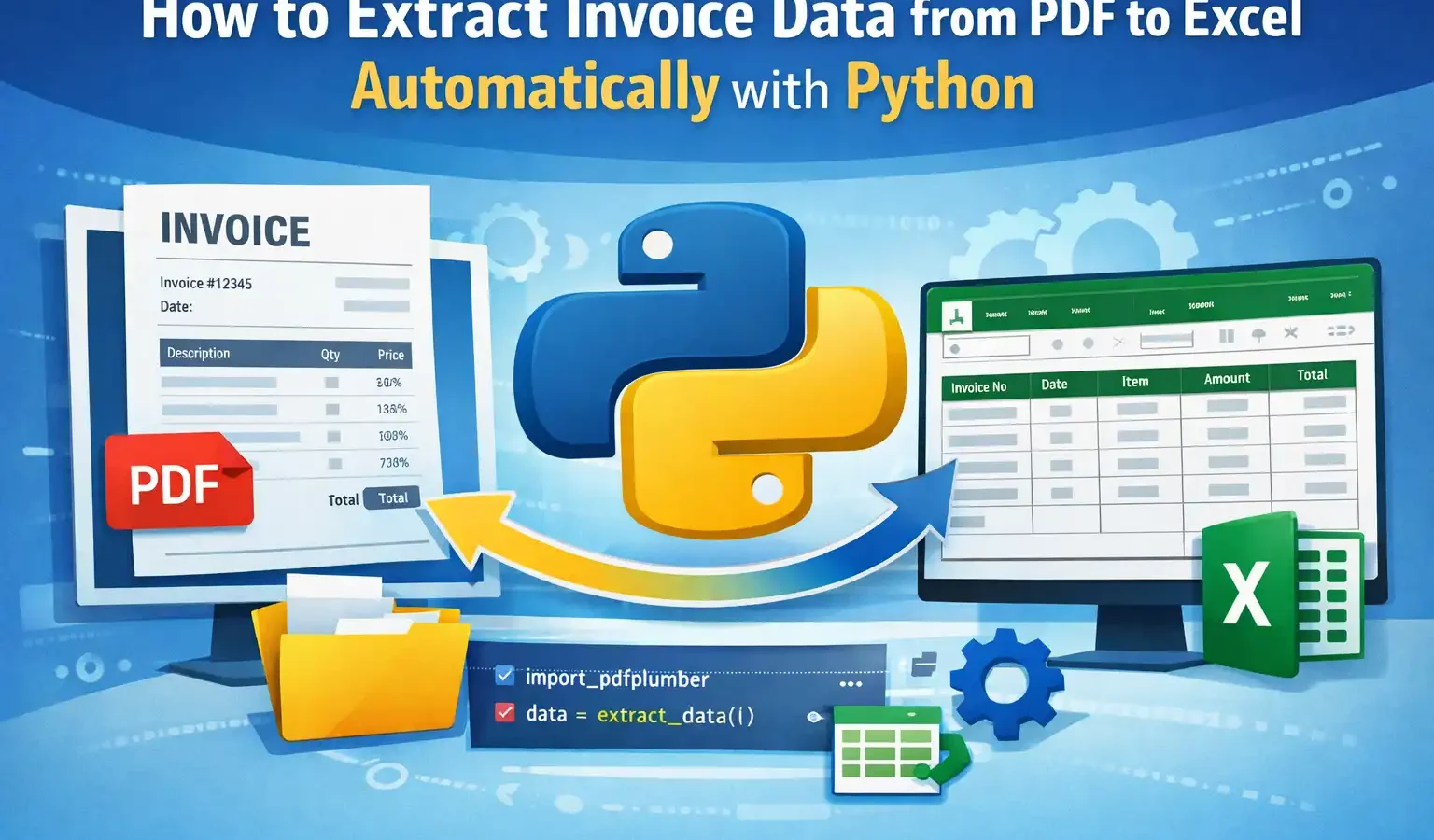
How to Extract Invoice Data from PDF Files and Save It to Excel Automatically with Python
If you process invoices regularly, you already know the pain — open a PDF, read the number, type it into a spreadsheet, repeat forty times. This guide shows you how to automate that entire process using Python, so a script does the reading and the spreadsheet fills itself.
What this guide produces
| Column in Excel | Extracted from PDF |
|---|---|
| Invoice Number | e.g. INV-2026-0041 |
| Invoice Date | e.g. 01 July 2026 |
| Due Date | e.g. 31 July 2026 |
| Vendor Name | e.g. Acme Supplies Ltd |
| Line Items | Description of goods/services |
| Quantity | e.g. 5 |
| Unit Price | e.g. €120.00 |
| VAT / Tax | e.g. €120.00 |
| Total Amount | e.g. €720.00 |
Before you start — one important check
This guide works with text-based PDFs — invoices generated by accounting software like Xero, QuickBooks, FreeAgent, Sage, or any PDF exported from a web browser. If your invoices are scanned paper documents (photographed or faxed and saved as PDF), this method will not work as written — scanned PDFs require OCR software to read the text first. Not sure which type you have? Open the PDF, try to highlight and copy some text. If you can select the text, it is text-based. If you cannot, it is a scanned image.
What You Need
A general walkthrough of extracting PDF data to Excel using pdfplumber — the same library used in this guide. Independent production, not a Wangdoo production.
Just the python_portable folder and your invoice PDF files. Python and all required libraries — pdfplumber, openpyxl, pandas — are already bundled inside python_portable. There is nothing to install and no internet connection required.
- The python_portable folder — self-contained, already set up
- Your invoice PDF files — text-based, not scanned (see the check below)
- Five minutes — this is a practical AI-era automation that replaces repetitive manual data entry permanently
Step 1 — Save the Python Script
On Mac, go to Format → Make Plain Text before pasting. Save the file as invoice_extractor.py — the .py extension is important, not .txt.
Windows users — important: when saving in Notepad, the Save As dialog has a “Save as type” dropdown that defaults to “Text Documents (*.txt)”. Change it to “All Files (*.*)” before saving, then type the full filename including the extension: invoice_extractor.py. If you skip this step, Notepad silently saves the file as invoice_extractor.py.txt and the script will not run. To check: in File Explorer, look for the file — if it shows as invoice_extractor.py.txt, delete it and repeat with the “All Files” option selected.
import pdfplumber
import openpyxl
import os
import re

# -----------------------------------------------
# CONFIGURATION — edit these two lines only
# -----------------------------------------------
PDF_FOLDER = "input_pdfs"                      # folder containing your PDF invoices
OUTPUT_FILE = "output_excels/invoices.xlsx"  # Excel file saved in output_excels folder

# -----------------------------------------------
# Helper: extract a value that follows a label
# e.g. find "Invoice Number:" and return what is after it
# -----------------------------------------------
def find_field(text, patterns):
    for pattern in patterns:
        match = re.search(pattern, text, re.IGNORECASE)
        if match:
            return match.group(1).strip()
    return ""

# -----------------------------------------------
# Main extraction function
# Reads one PDF and returns a list of rows
# (one row per line item on the invoice)
# -----------------------------------------------
def extract_invoice(pdf_path):
    rows = []
    with pdfplumber.open(pdf_path) as pdf:
        full_text = ""
        for page in pdf.pages:
            full_text += page.extract_text() or ""

        # --- Header fields ---
        invoice_number = find_field(full_text, [
            r"Invoice\s*(?:Number|No\.?|#)\s*[:\-]?\s*(\S+)",
            r"INV[-\s]?(\d+)"
        ])
        invoice_date = find_field(full_text, [
            r"Invoice\s*Date\s*[:\-]?\s*([\d]{1,2}[\s/\-][\w]+[\s/\-][\d]{2,4})",
            r"Date\s*[:\-]?\s*([\d]{1,2}[\/\-][\d]{1,2}[\/\-][\d]{2,4})"
        ])
        due_date = find_field(full_text, [
            r"Due\s*Date\s*[:\-]?\s*([\d]{1,2}[\s/\-][\w]+[\s/\-][\d]{2,4})",
            r"Payment\s*Due\s*[:\-]?\s*([\d]{1,2}[\/\-][\d]{1,2}[\/\-][\d]{2,4})"
        ])
        vendor = find_field(full_text, [
            r"From\s*[:\-]?\s*(.+)",
            r"Vendor\s*[:\-]?\s*(.+)",
            r"Supplier\s*[:\-]?\s*(.+)"
        ])
        vat = find_field(full_text, [
            r"VAT\s*[:\-]?\s*([\d,\.]+)",
            r"Tax\s*[:\-]?\s*([\d,\.]+)",
            r"GST\s*[:\-]?\s*([\d,\.]+)"
        ])
        total = find_field(full_text, [
            r"Total\s*(?:Amount\s*)?[:\-]?\s*([\d,\.]+)",
            r"Amount\s*Due\s*[:\-]?\s*([\d,\.]+)",
            r"Grand\s*Total\s*[:\-]?\s*([\d,\.]+)"
        ])

        # --- Line items from tables ---
        # pdfplumber can extract tables directly
        line_items_found = False
        for page in pdf.pages:
            tables = page.extract_tables()
            for table in tables:
                for row in table:
                    # Skip header rows and empty rows
                    if not row or not any(row):
                        continue
                    if row[0] and row[0].lower() in ["description", "item", "service"]:
                        continue
                    description = row[0] if len(row) > 0 else ""
                    quantity    = row[1] if len(row) > 1 else ""
                    unit_price  = row[2] if len(row) > 2 else ""
                    if description:
                        rows.append({
                            "file": os.path.basename(pdf_path),
                            "invoice_number": invoice_number,
                            "invoice_date": invoice_date,
                            "due_date": due_date,
                            "vendor": vendor,
                            "description": description,
                            "quantity": quantity,
                            "unit_price": unit_price,
                            "vat": vat,
                            "total": total,
                        })
                        line_items_found = True

        # Fallback: if no table found, add one row with header fields only
        if not line_items_found:
            rows.append({
                "file": os.path.basename(pdf_path),
                "invoice_number": invoice_number,
                "invoice_date": invoice_date,
                "due_date": due_date,
                "vendor": vendor,
                "description": "",
                "quantity": "",
                "unit_price": "",
                "vat": vat,
                "total": total,
            })
    return rows

# -----------------------------------------------
# Build the Excel file
# -----------------------------------------------
wb = openpyxl.Workbook()
ws = wb.active
ws.title = "Invoices"

# Column headers
headers = [
    "File", "Invoice Number", "Invoice Date", "Due Date",
    "Vendor", "Description", "Quantity", "Unit Price", "VAT/Tax", "Total"
]
ws.append(headers)

# Process every PDF in the folder
pdf_files = [f for f in os.listdir(PDF_FOLDER) if f.lower().endswith(".pdf")]

if not pdf_files:
    print(f"No PDF files found in '{PDF_FOLDER}' folder.")
else:
    for filename in sorted(pdf_files):
        path = os.path.join(PDF_FOLDER, filename)
        print(f"Processing: {filename}")
        try:
            rows = extract_invoice(path)
            for row in rows:
                ws.append([
                    row["file"], row["invoice_number"], row["invoice_date"],
                    row["due_date"], row["vendor"], row["description"],
                    row["quantity"], row["unit_price"], row["vat"], row["total"]
                ])
        except Exception as e:
            print(f"  Error reading {filename}: {e}")

    wb.save(OUTPUT_FILE)
    print(f"\nDone. {len(pdf_files)} invoice(s) processed.")
    print(f"Results saved to: {OUTPUT_FILE}")
Step 2 — Set Up Your Folder Structure
Your python_portable folder already contains everything you need. The structure looks like this:
python_portable/
├── RUN.bat              ← double-click this to run the extractor
├── invoice_extractor.py ← the script
├── input_pdfs/          ← put all your invoice PDFs in here
│   ├── invoice-001.pdf
│   ├── invoice-002.pdf
│   └── invoice-003.pdf
└── output_excels/       ← your extracted Excel file appears here
    └── invoices.xlsx
Copy all your invoice PDFs into the input_pdfs folder. The script reads from there and writes results into the output_excels folder automatically. You can drop in as many PDFs as you like — ten, a hundred, it makes no difference.
Step 3 — Double-click RUN.bat to Run the Script
Open the python_portable folder. You will see an icon called RUN (a .bat file). Double-click it.
A black command prompt window opens automatically, processes every PDF in the input_pdfs folder, and closes when it is finished. You do not need to type anything.
When it is done, open the output_excels folder — your invoices.xlsx file is there, with one row per line item across all your invoices.
What you will see while it runs
Processing: invoice-001.pdf
Processing: invoice-002.pdf
Processing: invoice-003.pdf
Done. 3 invoice(s) processed.
Results saved to: output_excels/invoices.xlsx
Step 4 — If Some Fields Come Back Empty
The script uses pattern matching to find fields like “Invoice Number” and “Due Date.” It looks for common label formats — “Invoice No:”, “INV-“, “Due Date:”, “Total Amount:” and so on. Most invoices from standard accounting software use these exact labels, which is why the script works without configuration.
If a field comes back blank for a particular supplier’s invoices, it usually means that supplier uses a different label — for example “Reference” instead of “Invoice Number,” or “Payment Terms” instead of “Due Date.” Open that invoice PDF, find exactly what label the field uses, and add it to the matching patterns in the script. The section you need is clearly labelled with comments. Each pattern entry is one line — copy an existing one, change the label text, save, and run again.
Stuck? Use Claude to customise the script for you
If your invoices use unusual layouts, non-standard labels, or you want to extract additional fields the script does not currently cover, Claude (claude.ai) can help you refine and adapt the extractor. Paste the relevant section of the script into Claude, describe what your invoice looks like and what field is coming back blank, and ask it to update the pattern. For example: “My supplier’s invoices use ‘Ref:’ instead of ‘Invoice Number:’ — update this Python script to catch that.” Claude can also help you add entirely new columns, handle currency symbols, or reformat dates into a specific style for your spreadsheet.
Scanned invoices and handwritten invoices — OCR can help, but has real limits
If a field is blank for every invoice — not just some — it usually means the PDFs are scanned images rather than text-based. The test: open the PDF and try to highlight text with your cursor. If you cannot select any text, the file is a scanned image.
For scanned invoices, OCR (Optical Character Recognition) software such as Tesseract via the pytesseract library can attempt to read the text from the image before the extractor processes it. Honest assessment: it works reasonably well on clean, high-resolution scans of typed invoices — but accuracy drops noticeably with low-quality scans, unusual fonts, or poor lighting. For handwritten invoices, OCR accuracy is significantly worse. Handwriting varies so much between individuals that even the best OCR engines struggle, and a misread total or invoice number that ends up in your spreadsheet without you noticing it is worse than no extraction at all. If your invoices are handwritten or low-quality scans, manual entry or a dedicated invoice scanning service designed specifically for this purpose will give more reliable results than a general OCR approach. For clean digital scans, it is worth trying — but verify the output carefully before relying on it.
Customising the Script
Change the folder or output file name
At the top of the script, two lines control where the script looks and where it saves:
PDF_FOLDER = "input_pdfs"                      # change this if your input folder has a different name
OUTPUT_FILE = "output_excels/invoices.xlsx"  # change this if you want a different output filename
You can use full paths if needed — for example “C:/Users/YourName/Documents/invoices” on Windows or “/Users/YourName/Documents/invoices” on Mac.
Add a new supplier label
If a supplier uses “Bill Number” instead of “Invoice Number,” find this section in the script and add a new pattern line:
invoice_number = find_field(full_text, [
    r"Invoice\s*(?:Number|No\.?|#)\s*[:\-]?\s*(\S+)",
    r"INV[-\s]?(\d+)",
    r"Bill\s*Number\s*[:\-]?\s*(\S+)",  # ← add this line
])
Frequently Asked Questions
Will this work on Mac and Windows?
Yes — Python, pdfplumber, and openpyxl all run on Windows, Mac, and Linux. The only difference is which command you use to open the terminal and how you write folder paths. Both are covered in the steps above.
How many PDFs can it process at once?
There is no limit built into the script. It processes every PDF it finds in the invoices folder, one after another. A hundred PDFs takes a few seconds on a modern laptop. The output Excel file gets one row per line item, so a hundred invoices with three line items each produces three hundred rows.
What if my invoices are in subfolders?
The script only looks in the top-level invoices folder, not subfolders inside it. If your PDFs are organised into monthly subfolders, either move them all into the main invoices folder before running, or change the PDF_FOLDER path to point at the specific subfolder you want to process.
Will it overwrite my existing invoices.xlsx if I run it again?
Yes — each run creates a fresh Excel file, overwriting the previous one. If you want to keep previous results, rename the old file before running the script again, or change the OUTPUT_FILE value to a new name.
My invoice has multiple pages — will it read all of them?
Yes. The script loops through every page of every PDF before extracting. Multi-page invoices with line items spread across pages are handled correctly.
Can I run this automatically every day or week?
Yes. On Windows, use Task Scheduler to run python invoice_extractor.py on a schedule. On Mac, use cron or the built-in Automator. Point the script at a folder where new invoices land and it will process whatever is there each time it runs.